"Attachment too large." You know the message. Gmail caps attachments at 25 MB, Outlook and most corporate mail servers somewhere between 10 and 20 MB, and some government forms go as low as 2 or 5 MB. Your PDF is twice that.
The quick fix is to compress it. The quick and sensible fix is to compress it without uploading your document — often a contract, an application or a report — to some unknown website's server.
PDFKami – Compress PDF shrinks your file right in your browser. Free, no account, no ads, no limits, and nothing leaves your computer.
Compress a PDF in three steps
- Open pdfkami.com/en/compress-pdf.
- Drag and drop your PDF.
- Click Compress and download the smaller file.
The page shows the size before and after. Still too big? Run it again at a stronger compression level.
Why is your PDF so big?
Knowing where the bulk comes from helps you pick the right level:
- Images almost always make up the lion's share. One smartphone photo dropped into a document weighs 3 to 5 MB on its own; a 600 dpi scan, even more.
- Embedded fonts, especially when the document embeds several of them in full.
- Metadata and unused objects left behind by editing software (earlier versions, thumbnails, attachments).
- No internal compression: some PDF generators store images completely uncompressed.
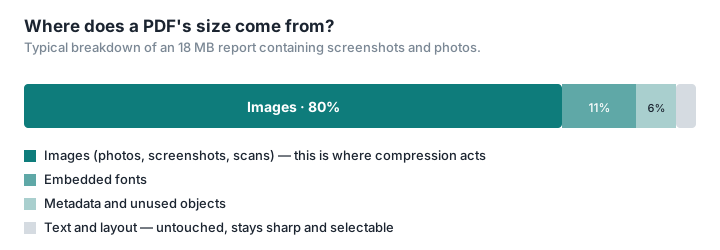
Compression tackles all four: it resamples images, strips out redundant data and recompresses streams. Text stays crisp and selectable.
Which compression level?
Light: images keep their quality. Best for anything the recipient will print or zoom into (plans, portfolios, catalogues).
Medium: the sweet spot for email. Images stay perfectly readable on screen.
Strong: for squeezing under a hard limit (a 2 MB government form, an upload portal). Images are visibly reduced; text is untouched.
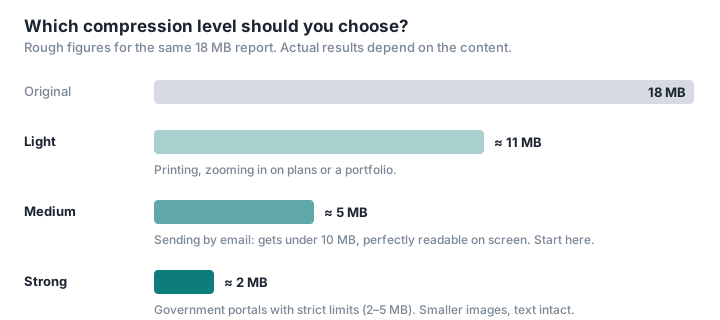
Rule of thumb: start with medium. If it goes through, you're done.
Free, no account, no limits, no ads
Compression is the feature free PDF sites ration most aggressively: one or two a day, then it's create an account, take out a subscription or sit through an artificial wait — all wedged between two banner ads.
PDFKami has no quota, no account, no ads and no cookies. And because the file never leaves your machine, compressing a big document is often faster than elsewhere: no upload to wait for, no result to download from a server.
For a look at what happens on conventional tools, read Where do your files go when you use an online PDF converter?
When you'll need it
Sending an application to an agency or a bank: the merged file tops 25 MB because of the scans. Compress it and it goes through in a single email.
Uploading to a government portal (in France: the tax office, CAF, ANTS, France Travail): limits there are often very low, and that's exactly what strong compression is for.
Applying for a job online: the platform rejects your portfolio. Medium compression usually cuts the size by three or four times without hurting on-screen reading.
Sharing an internal report: high-resolution screenshots bloat the document. Compress it before posting to Slack or Teams.
Archiving: shrinking hundreds of scanned invoices frees up storage without losing legibility.
A few more tricks
Compress at source. Exporting from Word, PowerPoint or Google Docs? Look for the "Minimum size" or "Optimise for web" option: the PDF starts out lighter.
Scan at 150–200 dpi. For a text document that's more than enough, and three to four times lighter than 600 dpi.
Drop the pages you don't need. Before compressing, remove blank or irrelevant pages with the page organiser: it's the most effective compression there is.
Split if you have to. A very large document can also be split into several PDFs and sent separately.
Check the text. After compression, the text should still be selectable and sharp. If your PDF is a scan with no text layer, it was one before too: compression doesn't change that.