You google "merge pdf" or "compress pdf", click the first result, drop your file in and download the result. Thirty seconds, free, job done.
Between the drop and the download, one question almost always goes unasked: your file has just been copied onto someone else's computer. A tenancy agreement, a payslip, a quote with your margins on it, a medical record, a confidential report from work.
This article walks through what actually happens, what you should be checking, and why one approach makes the whole question go away: processing the PDF in your browser, without ever sending it anywhere.
What actually happens when you "drop" a file
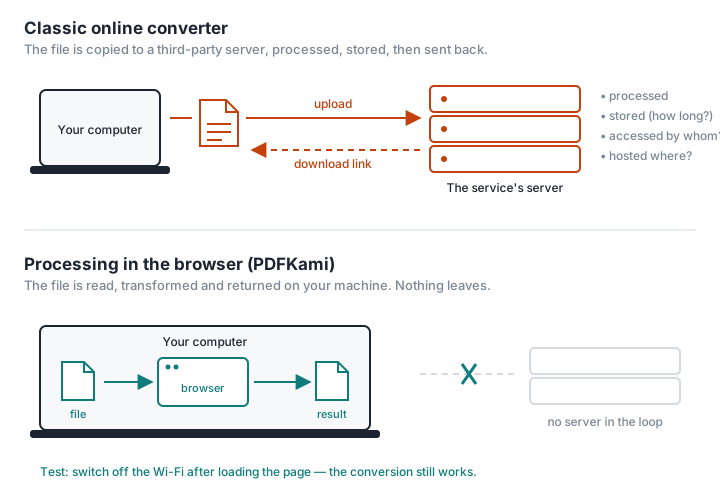
The vast majority of online PDF tools work like this:
- Your browser uploads the whole file to the service's servers (usually with a cloud provider, sometimes outside Europe).
- The server processes it: merging, compressing, converting.
- The result is stored temporarily and you're handed a download link.
- The original and the result are deleted… eventually, depending on the service's policy.
"Online" is a misleading word. The work isn't done online; it's done on their machines. Your browser is just the front desk.
The questions you should be asking
Before you drop a sensitive document on a conversion site, you should be able to answer these. In practice, almost nobody can:
How long is the file kept? Minutes? Hours? Longer if you have an account? The answer is in the privacy policy, rarely on the tool's own page.
Where are the servers? For EU citizens' personal data, hosting outside the EU means a different legal regime (GDPR, international transfers).
Who can get at it? The service's staff, its subcontractors, the hosting provider? If there's a breach, your documents are part of what leaks.
Is the file analysed? Some services extract metadata, index the content to "improve the service", or use it for training.
What are the adverts paying for? A free tool plastered with banners is monetising your attention — and sometimes your browsing data, through the dozens of third-party trackers that land alongside the cookie banner.
None of this means these services are dishonest. Plenty are perfectly serious. But you're trusting them by default, without checking, with documents you'd never email to a stranger.
Who this really matters to
- HR and payroll: payslips, employment contracts, sick notes.
- Legal and notarial work: deeds, court papers, documents bound by professional confidentiality.
- Healthcare: reports, prescriptions, scans — health data, the most protected category under the GDPR.
- Finance and accounting: balance sheets, statements, tax returns.
- Any business: an employee who "quickly" compresses an internal report on a free site has just taken it outside the company perimeter, and IT has no idea.
- You, personally: ID card, tax statement, proof of address — precisely the documents people convert most often for a rental application or a bit of admin.
The alternative: don't send the file at all
There's a way to remove the problem rather than manage it: do the processing on your own computer, inside the browser.
Modern browsers are powerful enough to merge, split, compress or convert a PDF locally, in JavaScript or WebAssembly. The web page reads the file, transforms it in your machine's memory and hands you the result as a download — without a single byte going to a server.
That's how PDFKami works:
- No upload. The file never leaves your computer. There's nothing to delete server-side, because there's nothing server-side.
- Works offline. Once the page has loaded, switch off the Wi-Fi: the conversion still runs. It's the simplest way to check a tool is genuinely local.
- Zero cookies, zero trackers. No banner to click through, nothing stored on your device.
- No account, no limits, no adverts. Nothing to monetise, so nothing to collect.
- Hosted in Europe. The site itself (the page — not your files, which never travel) is served from European infrastructure.
In practice, that covers the everyday jobs: merge PDFs, compress a PDF, split or reorder pages, turn images into a PDF, convert Word to PDF, convert Markdown to PDF, add page numbers.
How to check a tool is local yourself
You don't have to take a site's word for it. Three checks, easiest first:
- The Wi-Fi test. Load the page, kill the connection, run the conversion. If it works, the processing is local.
- The browser's Network tab. Open the developer tools (F12 → Network), run the conversion and watch for a request carrying your file. On a local tool, there's nothing. PDFKami goes a step further: its security policy (CSP) technically forbids the page from opening any outbound connection to another domain. That isn't a promise; it's a rule your browser enforces.
- The file size. A 200 MB PDF processed in two seconds on an ordinary connection can't have been uploaded. It stayed with you.
Where the local approach falls short
To be honest: not everything can be done in a browser. Optical character recognition (OCR) on large documents, faithful PDF-to-Word conversion, or qualified electronic signatures need resources or trusted third parties that a web page alone can't provide. For those, pick a service whose retention policy you've actually read — or install software on your own machine.
For everything else — which is 90% of day-to-day PDF work — there's no longer any reason to send your files to anyone.
Your files are yours. Process them on PDF Kami, right in your browser.