A rental application to put together, a month of invoices for the accountant, a report stitched together from several exports: merging PDFs is probably the most common thing anyone does with the format.
It's also the moment people are most likely to drop their most sensitive documents – ID, payslips, tax assessments, contracts – onto the first free website they come across.
With PDFKami – Merge PDF, the merge happens entirely in your browser. Nothing is uploaded, nothing is stored, and there's no account to create, no adverts to sit through and no cap on the number of files.
Merge PDFs in three steps
- Open pdfkami.com/en/merge-pdf.
- Drag in your PDFs (as many as you like) and drag them into order if you need to.
- Click Merge and download the combined PDF.
No file leaves your computer. Once the page has loaded you can even switch off your internet connection: the merge still works.
Why "no server" matters more for merging
Merging is a special case. You're not handing over one document, you're handing over several – often a whole application's worth. A typical rental application (the dossier de location French landlords ask for) is an ID document, payslips, a tax assessment, an employment contract and proof of address: everything an identity thief needs, bundled into a single upload.
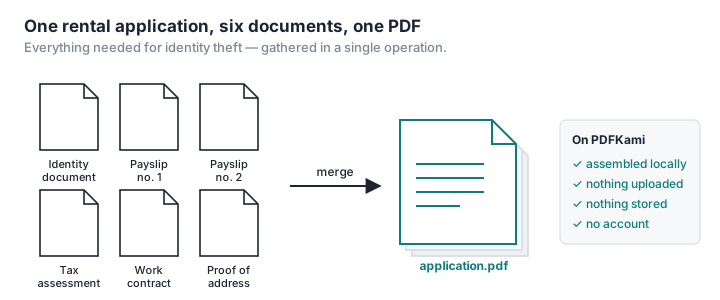
On a typical online converter, those files are sent to a server, stitched together, stored until you collect the result, then deleted under a policy you probably haven't read. On PDFKami there's no server in the loop: your browser reads the files, assembles them in memory and hands you the result as a download. We couldn't see your documents even if we wanted to.
For a closer look at what happens on traditional online tools, read Where do your files go when you use an online PDF converter?
What you can do while merging
- Reorder files by drag and drop before you start.
- Mix sources: a PDF exported from Word, a scan, a downloaded invoice.
- Chain tools together: once the PDF is merged, compress it if it's too big to email, add page numbers, or delete and rearrange pages.
Free, no account, no limits, no ads
Most "free" merge sites run on the same model: a handful of operations a day, then an account to create or a subscription to take out, all wrapped in banner ads and fake "Download" buttons.
PDFKami has no quota, no account, no ads and no cookies. Merge two files or two hundred, once or every day.
Common uses
Rental or loan application: get all your supporting documents into one PDF, in the order the agency or bank wants them.
Receipts for the accounts: merge the month's invoices into one document before sending it to your accountant.
Report or dissertation: put together the cover, the body exported from Word and appendices from other sources.
Scanned documents: does your scanner spit out one PDF per page? Merge them into one.
Job application: CV, cover letter and portfolio in a single file, as most recruitment platforms demand.
Tips
Getting the order right. Name your files with a numeric prefix (01-, 02-…) before you drop them in and they'll land in the right order.
Size of the result. A merged PDF weighs as much as its parts combined. If it's over your email provider's limit (usually 10 to 25 MB), run it through the compression tool.
Mixed orientation. You can merge portrait and landscape pages; each keeps its orientation. To even them out, use the page organiser afterwards to rotate the awkward ones.
A file from someone you don't know. Before adding a PDF that arrived by email to your application, run it through the PDF inspector. It flags embedded JavaScript and automatic actions – without sending anything anywhere.