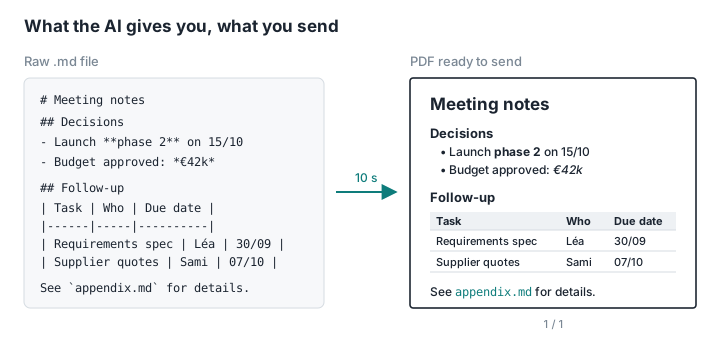
You asked ChatGPT, Claude, Gemini or Mistral for a report, some meeting notes, a lesson plan or a spec. What came back is clean and well structured… and it's a .md file, or a wall of text littered with #, ** and |. You can't send that to a client, a teacher or a colleague as it is.
You need a PDF. And you don't want to install anything, create an account, sit through adverts or upload your document to a stranger's server.
That's exactly what PDFKami – Markdown to PDF is for: the whole conversion happens in your browser. Free, no account, no cookies, and nothing leaves your computer.
Why do AIs write in Markdown?
AI assistants write Markdown because it's the lightest way to structure text: # for a heading, - for a list item, | for a table, three backticks for code. The chat window renders it nicely, but the moment you copy the text or download the file, you're left with the raw syntax.
A PDF, by contrast, opens everywhere and looks the same everywhere. It paginates, it prints, it attaches to an email. Hence the conversion step, as routine as it is irritating when you're doing it ten times a week.
Convert Markdown to PDF in three steps
- Open pdfkami.com/en/markdown-to-pdf.
- Drag in the
.mdfile you downloaded from your AI, or paste the Markdown straight from the chat. - Click Convert to PDF. Your browser's print dialogue opens; pick Save as PDF.
That's it. No sign-up, no email address, no daily cap, no watermark. The PDF you get is vector-based, so the text stays selectable and the links stay clickable.
Headings, lists, tables, code blocks, quotes, links and bold or italic text all survive intact. If your AI produced a comparison table or a code snippet, it'll come out cleanly in the PDF.
How PDFKami differs from other online converters
Most "free" converters upload your file to their server, process it there and send the result back. That's a problem on three counts when the document came from an AI. It often contains details about your company, your project or your clients. You've no guarantee it'll ever be deleted. And the free tier dries up fast: a daily conversion cap, a compulsory account, a watermark, and adverts wrapped around the tool.
PDFKami works differently.
100% local processing. The conversion runs in your browser, on your machine. The file is never uploaded. Check for yourself: load the page, switch off the Wi-Fi, and it still converts.
Works offline. Once the page is open, it keeps working without a connection. Handy on the train, on a plane or on a locked-down corporate network.
Zero cookies. No banner to click through, no trackers, no behavioural analytics. The page stores nothing on your device.
No account, no usage limit. Convert one file or a hundred, today or every day. No quota, no account to create, no "premium" tier that kicks in on the third file.
No adverts. No banners, no pop-ups, no fake "Download" buttons that open an advert in a new tab. The page contains the tool and nothing else.
For a document an AI generated from your internal data, that's the difference between a handy tool and one you can use without a second thought about privacy.
Typical use cases
- Report or summary requested from ChatGPT or Claude, to hand to a manager or a client as a PDF.
- Meeting notes generated by an agent from a transcript.
- Lesson, revision sheet or dissertation written with an AI's help, to print or upload to a platform that only accepts PDF.
- Technical documentation or README written by a coding agent (Claude Code, Cursor, Copilot), to share with non-developers.
- Spec, sales proposal or CV drafted with an AI, to send as an attachment.
Tips for a cleaner PDF
Copy-paste or download? If your AI offers a button to download the .md file, use it. Copying from the chat sometimes loses the line breaks in tables.
Page breaks. Drop <div style="page-break-after: always;"></div> into the Markdown wherever you want a new page to start. You can also just ask your AI to add the page breaks in its answer.
Images. Base64-embedded images are rendered. Remote images (http://…) are deliberately not loaded: a document someone sent you shouldn't be able to phone home when you open it. And images the AI merely "describes" without generating won't appear, obviously.
Document title. Start your Markdown with a level-1 heading (# My title) and it becomes the PDF's main title.
Page numbers, merging, compression. Once the PDF exists, PDFKami can also add page numbers, merge it with other PDFs or compress it, all locally and without an account.
What about developers?
If you're converting Markdown in bulk or inside a pipeline, a command-line tool is the better fit. Pandoc (pandoc doc.md -o doc.pdf) is still the reference, and the Markdown PDF extension for VS Code does the job from inside the editor. For a one-off conversion of an AI-generated document, PDFKami is simply quicker.